
How to use Worried Presenter
A short, practical guide to turning your Figma frames into a rehearsed, confident presentation — from installing the plugin to reading your AI feedback. This guide grows over time, so check back as new features land.
Welcome
Worried Presenter is a Figma plugin that helps you rehearse what you'll actually say over your designs. You pick the frames you'll be walking through, record yourself talking, and the plugin turns your run into a polished script with honest, specific feedback.
It's built for designers, founders, and PMs who have to present their work — and want to sound prepared without writing a script from scratch.
Install the plugin
Worried Presenter runs inside Figma as a plugin. You only need to install it once.
Open the Figma Community tab
In Figma, go to Resources → Plugins and search for "Worried Presenter".
Click “Run” or “Save”
Saving adds it to your plugins list so you can launch it from any file.
Launch from your file
Right-click the canvas and choose Plugins → Worried Presenter, or use the quick actions menu.
Need access first? Worried Presenter is currently in early access — request an invite here and we'll get you set up.
Quick start
Here's the short version — each step has its own section below with more detail.
Import your frames
Bring in the Figma frames you'll present, numbered and ordered.
Record your voice
Talk through your designs like you would in the room.
Receive new script
Get a new story-driven script and specific feedback on your run.
Edit and re-record
Refine the wording and re-record new runs to perfect it.
Listen with an AI voice
Hear your script and feedback read back by an AI voice.
Export back into Figma
Send your enhanced script back into your Figma file.
1 · Import your frames from Figma
First number and order the frames you wish to present. Then open the plugin, and select the frames in the order you'll walk through them. Finally click on Export selected boards in the plug-in window.
- Order matters — the script follows the order you import, so pick your opening frame first.
- Any frame works — slides, design mockups, mobile screens, concept boards…
- Keep it focused — for best results, keep your selection under 50 frames.
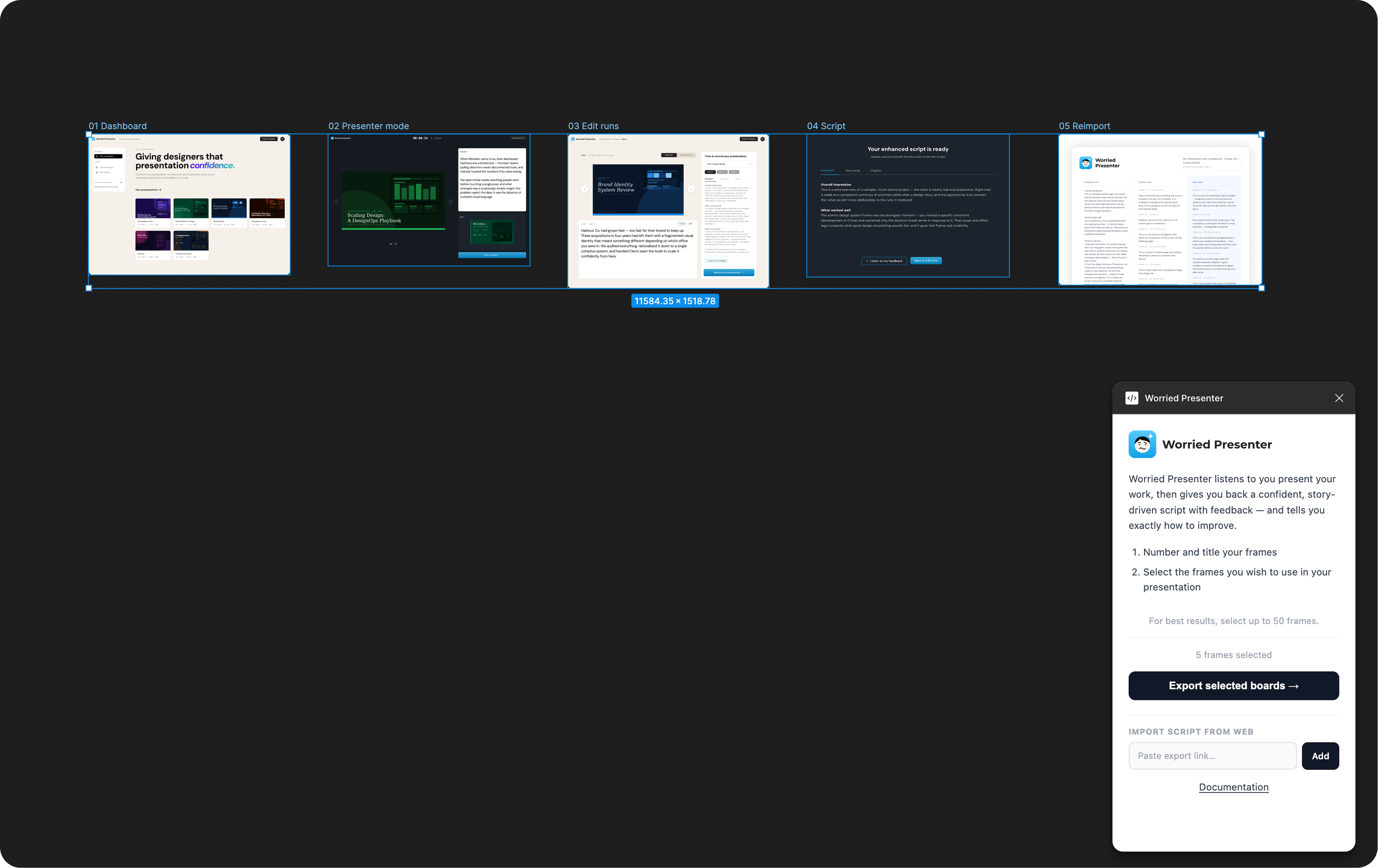
Worried Presenter Figma plug-in panel.
2 · Record your voice presentation
Press record and talk through your designs exactly as you would in front of an audience. Don't worry about stumbling or filler words — that's what the plugin is here to clean up.
While you record
- Speak naturally and at your normal pace.
- Move through your frames as you talk — the plugin keeps your words tied to the right frame.
- Pause whenever you need to; gaps are trimmed automatically.
- For best results keep recordings under 20 minutes to avoid stability issues.
Microphone tip: a quiet room and a headset mic make a noticeable difference to transcription quality.
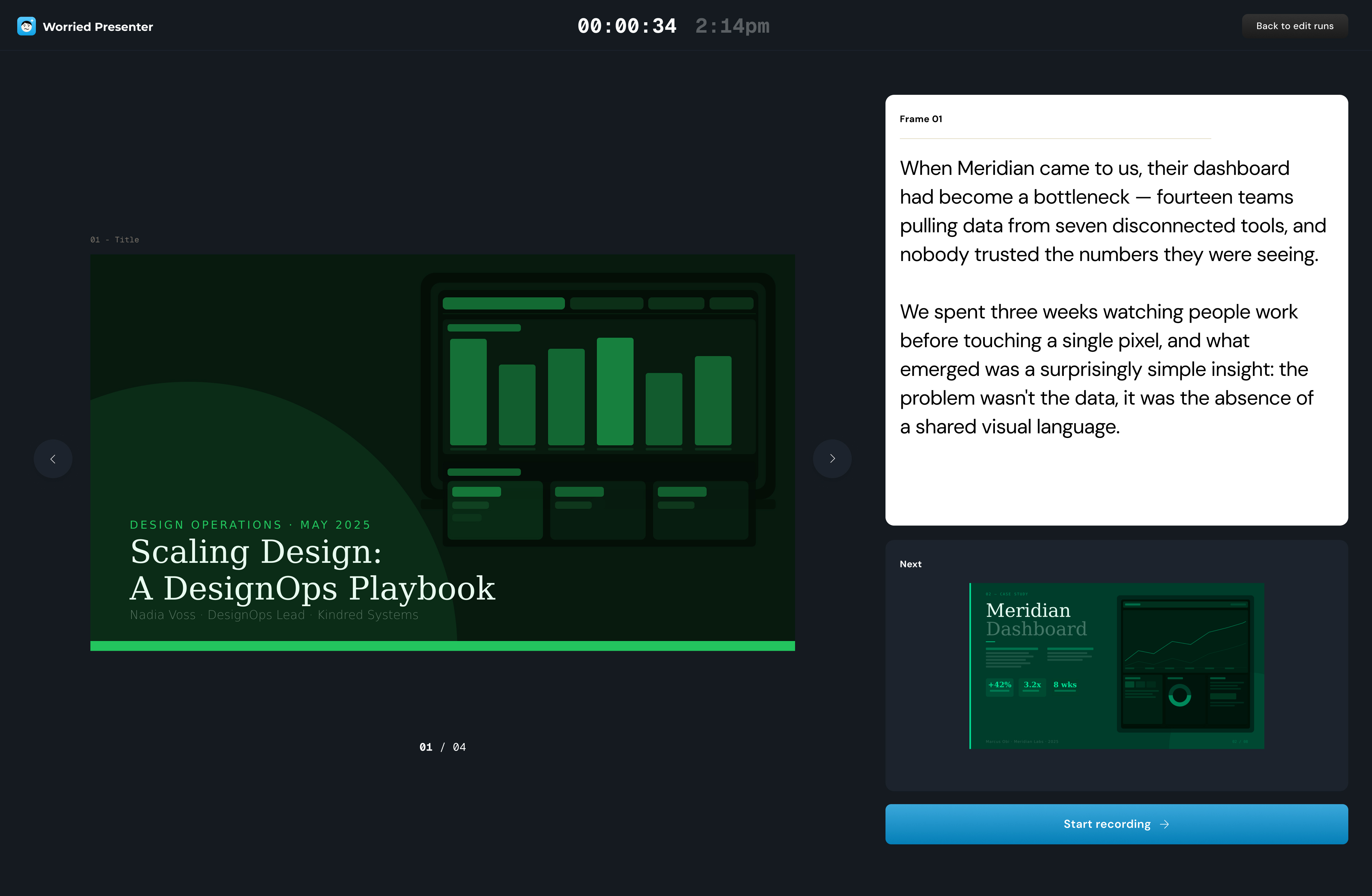
Presenter mode keeps your current frame and notes in view as you talk.
3 · Receive a new story-driven script and feedback
When you stop recording, Worried Presenter generates two things: a clean, story-driven script of what you said, and specific feedback on how the run came across.
Your enhanced script
Filler words and false starts are removed, and your phrasing is shaped into a clear narrative while keeping your voice. Use it as a teleprompter, share it with teammates, or just read it back to spot gaps.
Your feedback
Feedback is grouped so it's easy to act on:
- What worked well — the moments that landed, so you keep them.
- Overall impression — how the run reads end to end.
- Things to tighten — concrete suggestions for your next take.
- Listen along — hear your new script or feedback read back with an AI voice.
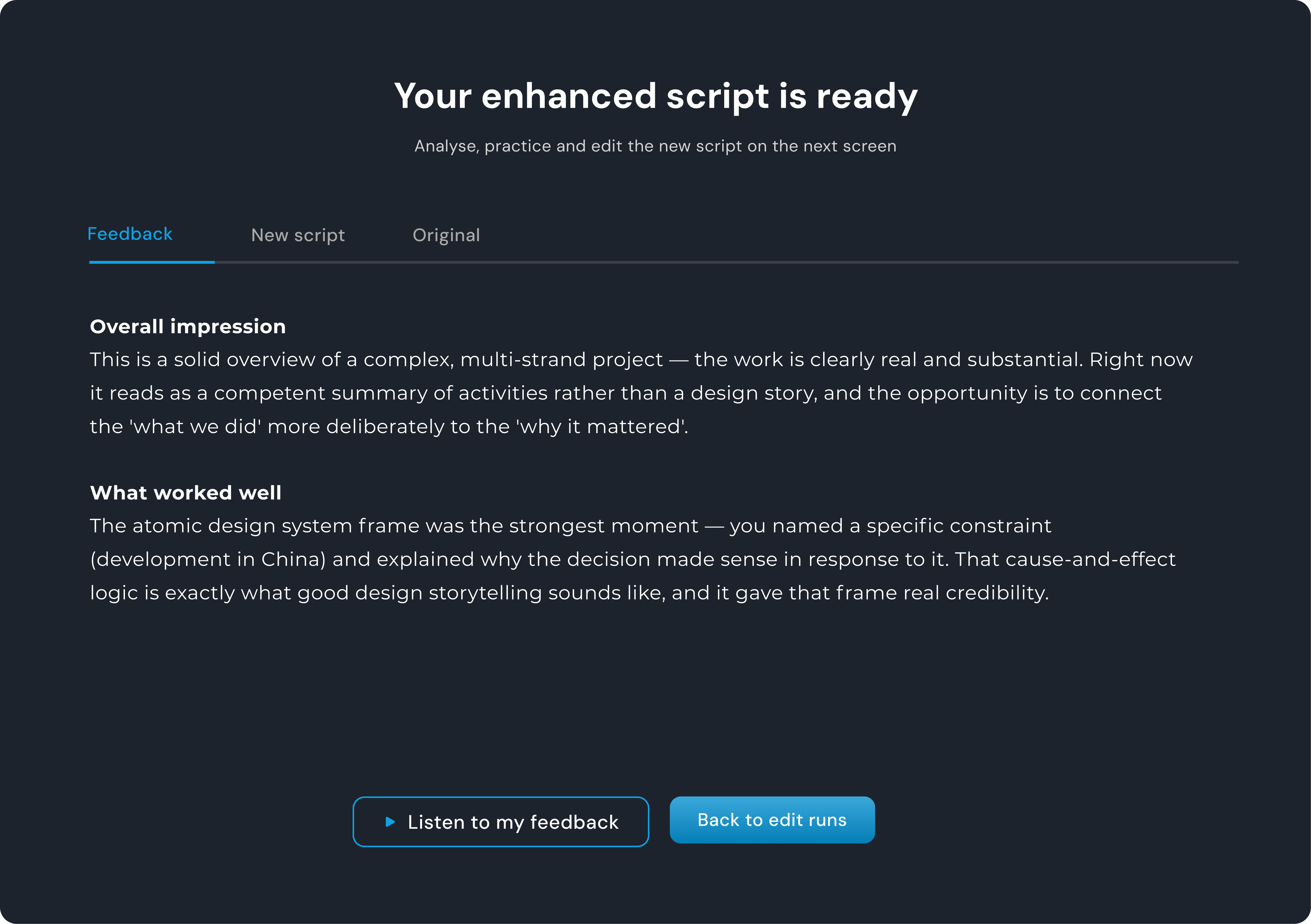
Your story-driven script alongside grouped, specific feedback.
4 · Edit and re-record new runs to perfect it
The generated script is fully editable, so you can tweak wording before you rehearse. When you're ready, record another run and compare — try a take, read the feedback, and go again.
- Edit inline — adjust phrasing directly in the plugin without leaving your flow.
- Re-record freely — each new run gets its own script and feedback.
- Compare runs — keep an earlier run to see how much tighter your delivery gets.
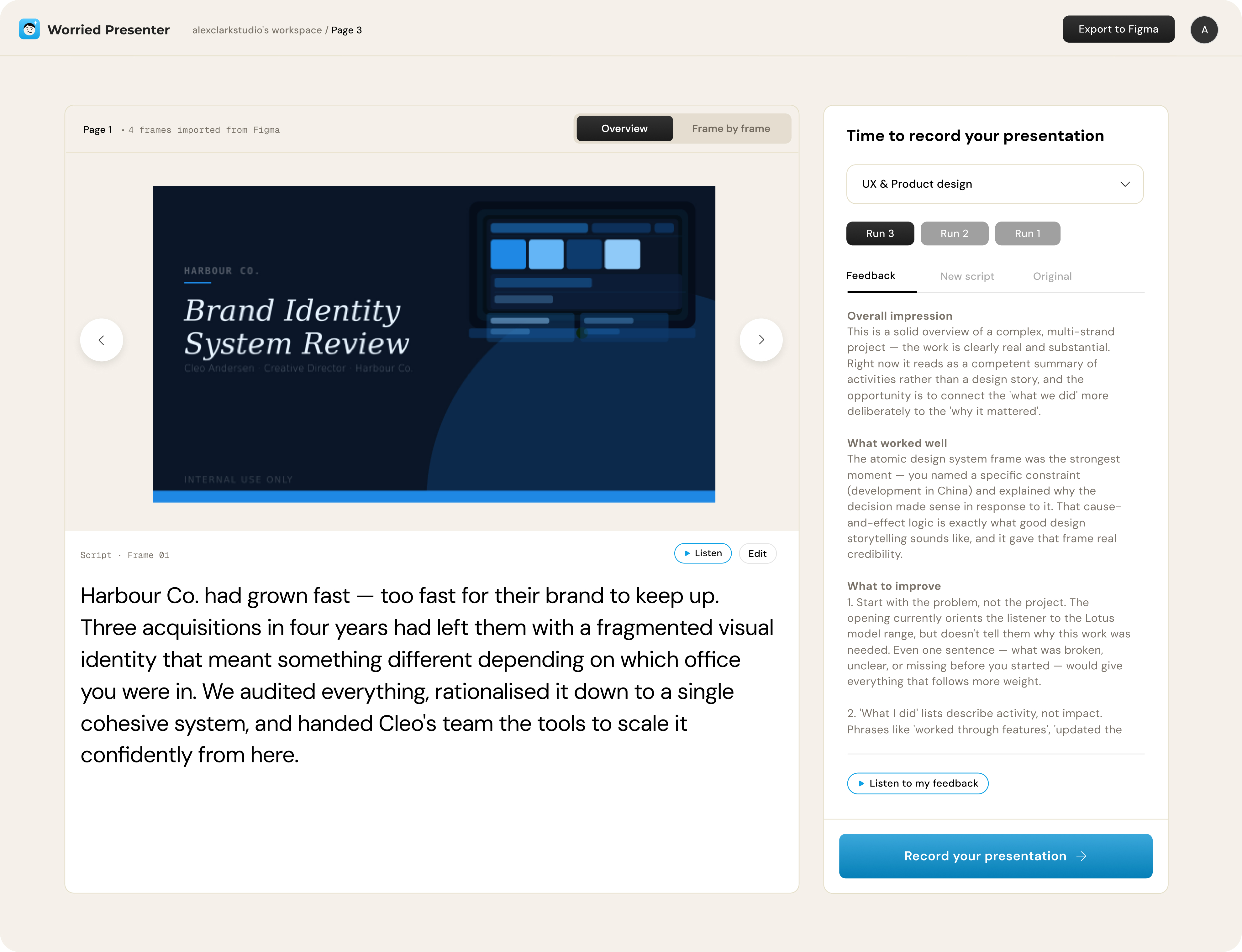
Edit your script and re-record until the run feels right.
5 · Listen to your feedback and new scripts from an AI voice
Prefer to hear it rather than read it? Worried Presenter can read your enhanced script and feedback back to you in a natural AI voice — handy for rehearsing on the go or checking how your words flow out loud.
- Hear your script — listen to your run read back at a steady pace.
- Hear your feedback — absorb suggestions without staring at the screen.
6 · Export your new enhanced script back into Figma
Once you're happy with a run, send the enhanced script back into your Figma file — so your notes live right alongside the frames they belong to, ready for the next rehearsal or a handoff to your team.
- Stays with your frames — the script lands next to the designs it describes.
- Share-ready — teammates open the file and see exactly what you'll say.
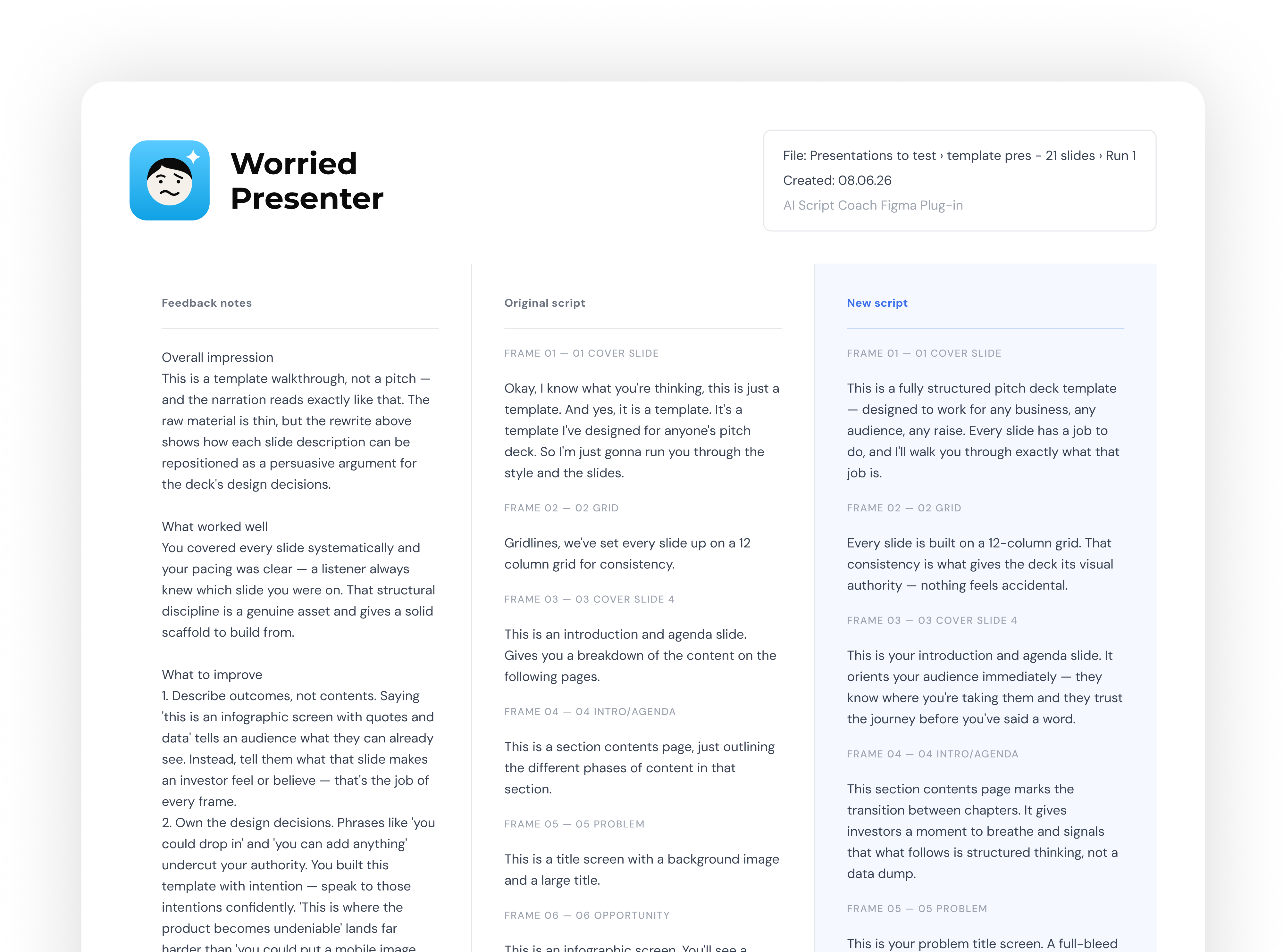
Your feedback, original script, and new script exported back into Figma.
Tips for best results
- Keep your selection to within 50 frames — larger sets are slower and less stable.
- Keep your voice recordings under 20 minutes — shorter runs transcribe more reliably.
- Do a real run, not a summary — present as if the audience is in front of you.
- Keep frames focused — one idea per frame makes for a cleaner script.
- Re-record freely — try a take, read the feedback, and go again.
- Compare runs — keep an earlier run to see how much tighter your delivery gets.
Troubleshooting
The plugin can't hear my microphone
Check that Figma has microphone permission in your browser or system settings, then relaunch the plugin. On the desktop app, you may need to grant access under System Settings → Privacy → Microphone.
My script is missing part of what I said
Check our guidelines to make sure you're set up for the best recording conditions. We don't store recordings, so this is an important first step.
Can I edit the generated script?
Yes. The enhanced script is fully editable in the plugin, so you can tweak wording before you export or rehearse from it.
Still stuck? This guide is a work in progress — more answers are on the way. For now, reach out and we'll help directly.